
A hidden Gem integrated as part of the VMware Horizon Suite is the Logon Monitor. This  little addition is an optional install as part of your horizon agent and requires a bit of setup to make this work. But if you are wanting a way to monitor your log on process and get some insight into whats going on, well here is the FREE tool to do so.
Setting up the Horizon Logon Monitor is a pretty simple process. Its installed by default with the Horizon agent since 7.2. The little know thing is you have to enable it. Enabling the Logon Monitor is done so on each of the connection servers. On each of the connection servers open a command prompt and enter the following:
vdmadmin -I -timingProfiler -enable
That will enable the Logon Monitor and if you want to disable just change -enable to -disable.
The next part is you will need to enable the Logon Monitor service on the Master Images. Just change the services from disabled to automatic.
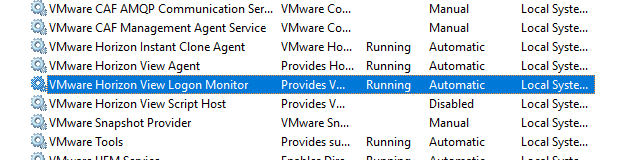
So that is a pretty simple install process. So from this default setup it will save your Logon Monitor logs in the default location of:
C:\ProgramData\VMware\VMware Logon Monitor\Logs
What does this actual capture? Well it captures a wealth of information from your VM.
FQDN, IP, DNS Servers, User Name from the VM its self. Also as it logs on it starts pulling data from things like:
Logon Time, Logon Start to Hive Loaded, Logon Start to Classes Hive Loaded, Profile Sync Time, Windows Folder Redirection Apply Time, Total Logon Script Time, Users Policy Apply Time, Machine Policy Apply Time, Group Policy Software Install Time, and Free Disk space.
A full list of metrics that can be captured please look at the VMware Website located here. This is an excerpt of that.
| Metric | Parameters | Description |
|---|---|---|
| Logon time |
|
Metrics include the time logon starts on the guest, logon is completed and the profile is loaded and the desktop is visible, and the total time spent processing logon on the guest. Excludes any time spent outside of the guest. |
| Session start to logon start time | Total time | Time from when Windows created a user session until logon began. |
| Profile sync time | Total time | Time Windows spent reconciling user profile during logon. |
| Shell load |
|
Windows provides the start time of the user shell load. The end time is when the explorer window is created. |
| Logon to hive load time | Total time | Metrics provide total time from when the logon starts to when the user registry hive is loaded. |
| Windows folder redirection |
|
Metrics related to the time Windows folder redirection starts and is fully applied, as well as the total time to enable Windows folder redirection. This time can be high for the first time folder redirection has been applied or if new files are being uploaded to the redirected share. |
| Group policy time |
|
Metrics related to applying group policy to the guest include the time it took to apply user group policy and machine group policy. |
| Profile metrics |
|
Metrics related to the user profile indicate the type of user profile and whether it is stored on the local machine, on a central profile store, or deleted after logoff.
The profile size includes metrics on the number of files, the total number of folders, and the total size in MB of the user profile. |
| Profile size distribution |
|
A count of the number of files in various size ranges in the user profile. |
| Processes started during logon |
|
These values are logged for each process that starts from the time the session starts until the logon is complete. |
| Group policy logon script time | Total time | Metrics related to executing group policy logon scripts report total time spent executing group policy logon scripts. |
| Group policy power shell script time | Total time | Metrics related to executing group policy power shell scripts indicate time spent executing group policy power shell scripts. |
| Memory usage |
|
WMI metrics related to memory usage during logon. Samplings are takings until logon is complete. Disabled by default. |
| CPU usage |
|
WMI metrics related to CPU usage during logon. Samplings are taken until logon is complete. Disabled by default. |
| Are logon scripts synchronous? | Reports whether group policy logon scripts are executed synchronously or asynchronously to the logon. | |
| Network connection status |
|
Reports whether the network connection is alive or disconnected. |
| Group Policy Software Installation |
|
Metrics related to group policy software installation indicate whether the installations are synchronous or asynchronous to the logon, if the installations succeeded or failed, and the total time spent installing software using group policy. |
| Disk Usage For Profile Volume |
|
Metrics related to the disk usage on the volume where the user profile is stored. |
| Domain Controller Discovery |
|
Domain controller related metrics. Error code indicates if there is a failure reaching the domain controller. |
| Estimated network bandwidth | Bandwidth | Value collected from Event ID 5327. |
| Network connection details |
|
Values collected from Event ID 5314. |
| Settings that can affect logon time |
|
|
| Metrics from Horizon Agent, Persona Management, App Volumes | VMware products that interact with Logon Monitor report custom metrics in the Logon Monitor logs. These metrics can help determine if one of these products might be contributing in a negative way to the logon time. |
This table was acquired from the above link on VMware Website.
There are some other metrics you can gather as part of this but it does cause a bit of a performance hit on logon, but nothing anyone would notice. You can enable the following:
CPU and memory metrics and Process Events and Logon Script Metrics
Those settings will require a bit more configuration. There are some configurations and customization you can do with Reg Keys on the master images. There are some Reg Keys you can create to customization to your deployment of this. VMware Link to settings. Here are the Reg keys that can be edited in the following location on each of the master images. The reg keys are located here: HKLM\Software\VMware, Inc.\VMware Logon Monitor
Below are the configuration values found at HERE
| Registry Key | Type | Description |
|---|---|---|
| RemoteLogPath | REG_SZ | Path to remote share to upload logs. When logs are copied to remote log share they are placed in folders specified by the RemoteLogPath registry key. Example: \\server\share\%username%.%userdomain%. Logon Monitor creates the folders as needed. Disabled by default.
|
| Flags | REG_DWORD | This value is a bitmask to influence the behavior of the logon monitor.
|
| LogMaxSizeMB | REG_DWORD | Maximum size of the main log in MB. Default is 100 MB. |
| LogKeepDays | REG_DWORD | Maximum number of days to keep the main log before rolling it. Default is 7 days. |
Inside registry it would look something like this.
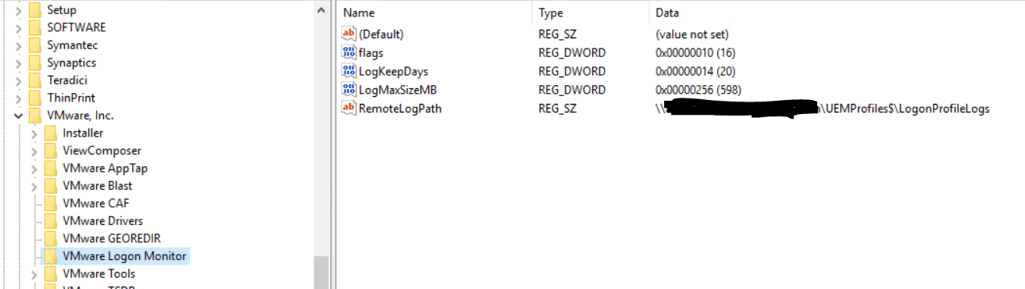
This is where you can set the Remote Log path, and can set it to create custom named logs for each person, set number of days to keep, and max size.
This is where the product begins to shine. Now you can save all those logs in central location so you can run though them when you need too, rather than being lost when the user logs off.
Logon Monitor logs will look something like:
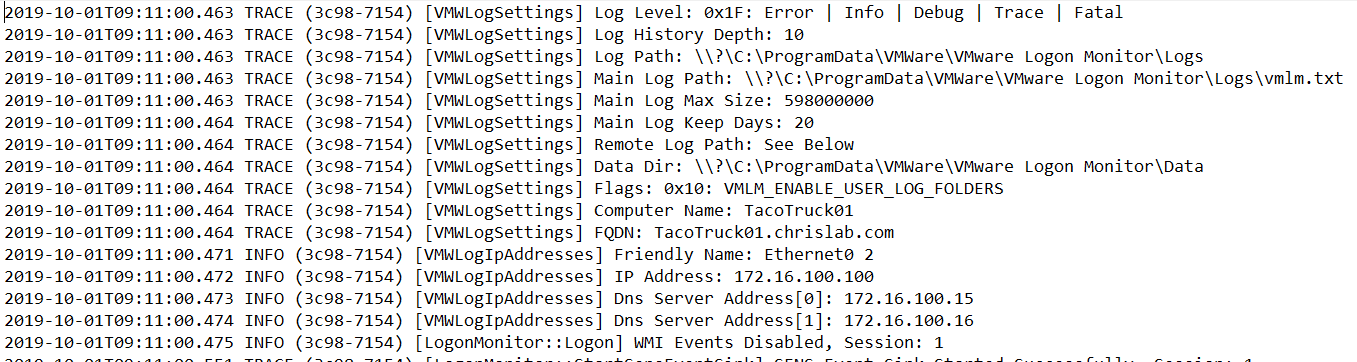
This will now help you with Logon troubleshooting. More to add to this in the near future!


 childebrandt42