
Was working with customer to deploy Horizon 2412, for new customer deployment. The customer also wanted to deploy Windows 11 24H2 to get the migration started. So we set out to start deploying a master image.
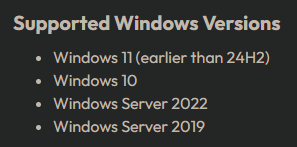
If you would like to look yourself on what OS is supported follow the link: Overview
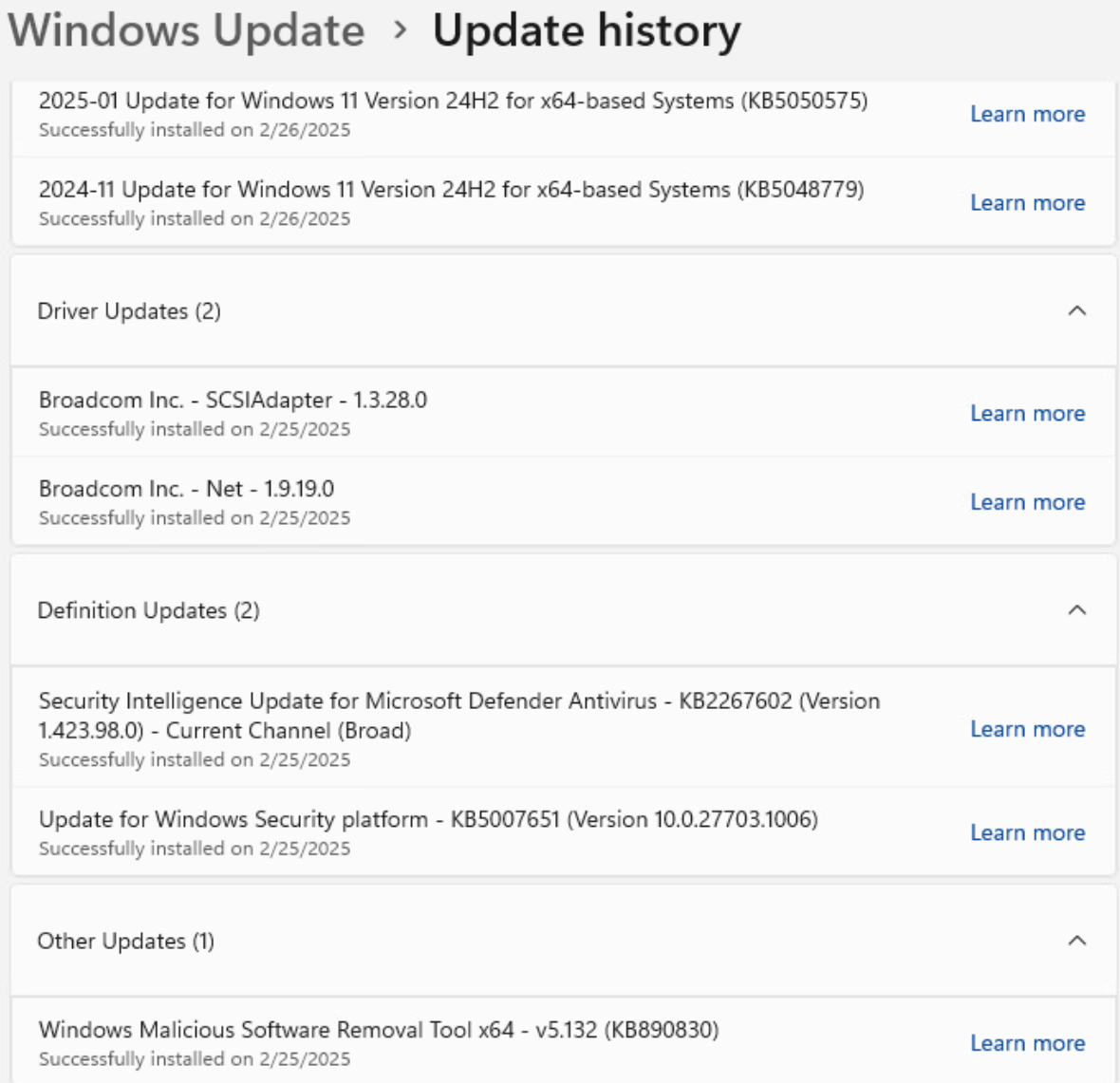
In creating a master image followed best practices, installed OS Windows 11 24H2 (SW_DVD9_Win_Pro_11_24H2.4_64BIT_English_Pro_Ent_EDU_N_MLF_X23-95675 to be exact) version, and entered into Audit mode as defined in the OS Optimizations best practices listed here. Installed VMware tools, And kicked off Windows Updates. Installed the following Windows Updates:
KB5050575
KB5048779
Broadcom – SCSIAdapter
Broadcom – NET
KB2267602
KB5007651
KB890830
Installed Horizon Agent just to leave it vanilla. And then proceeded to the OS optimizations.
Issue 1: Store Apps removal does not work
When you go to Store Apps, you will see that remove Windows Store Applications (Default) everything is greyed out but Web Extensions is checked but greyed out. If you by chance click “Keep all Windows Store Applications” and then toggle back, “Web Extensions” will be unchecked.
Workaround:
Run PowerShell script to remove Store Apps that are not wanted. I cant take credit for this script, but Graeme Gordon (Community post about it) created a script and Stephen Wagner optimized it a bit (Reference Link). For me I ran the following script:
$AppsToKeep = @("Microsoft.WindowsStore", "Microsoft.StorePurchaseApp", "Microsoft.DesktopAppInstaller", "Microsoft.SecHealthUI", "Microsoft.WindowsNotepad", "Microsoft.WindowsAlarms", "Microsoft.Windows.Photos", "Microsoft.ScreenSketch", "Microsoft.WindowsCalculator", "Microsoft.ScreenSketch", "Microsoft.Paint")

Get-AppxPackage -AllUsers | Where-Object {$_.IsFramework -Match "False" -and $_.NonRemovable -Match "False" -and $_.Name -notin $AppsToKeep} #| Remove-AppxPackage

Get-AppxProvisionedPackage -Online | Where-Object {$_.DisplayName -notin $AppsToKeep} | Remove-AppxProvisionedPackage -Online
It will purge all the dumb Windows apps. But this will leave one new Dumb app…”Windows Backup”

And now we have to remove this…. Well you can’t! (Reference Link) So we have to hide it, oh but wait, its integrated into the OS and you can’t to my knowledge. Yea great I know!
Okay now that we have removed most of the apps and have ran optimization lets move on to Issue 2.
Issue 2: Generalization fails!
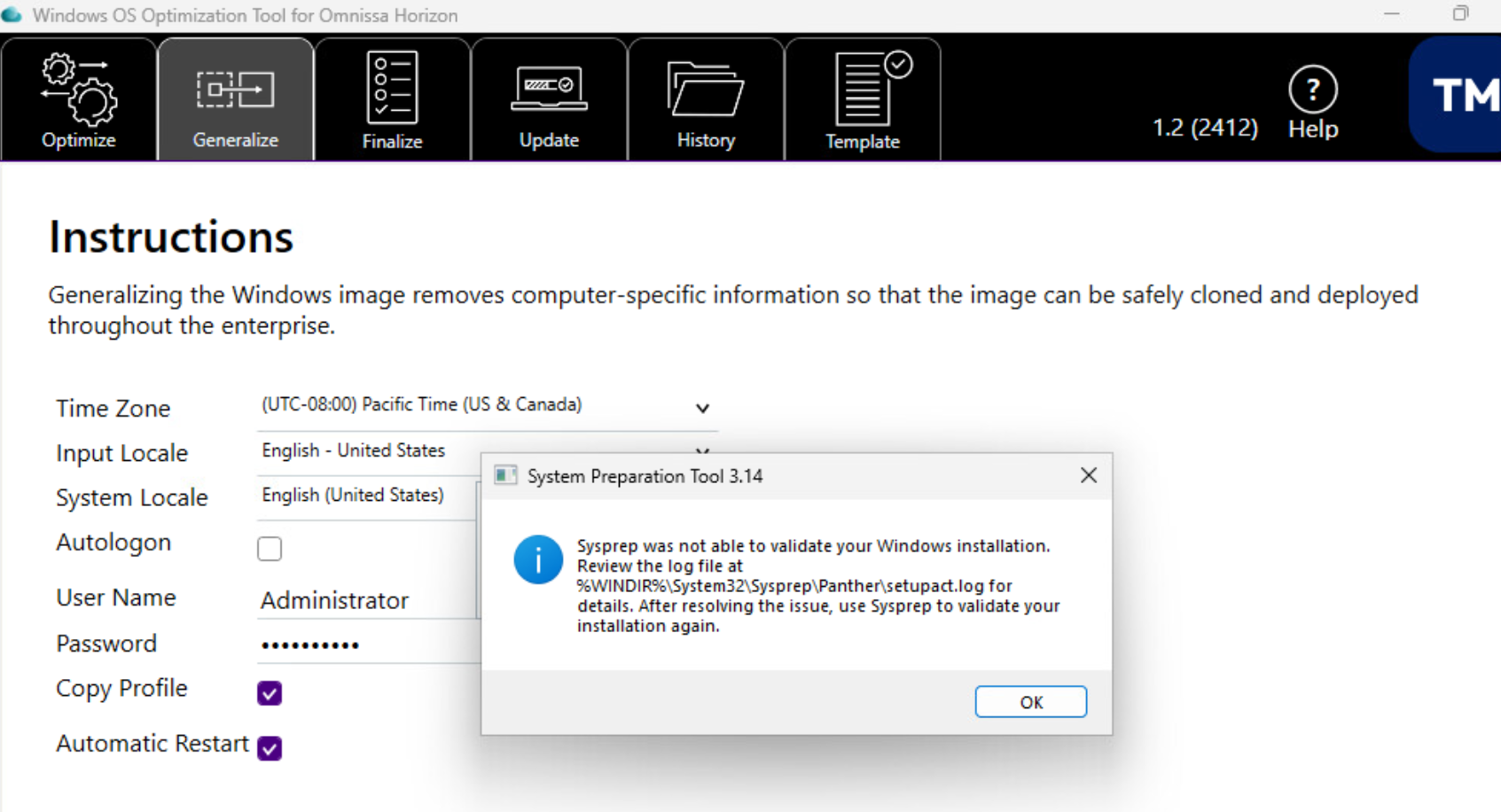
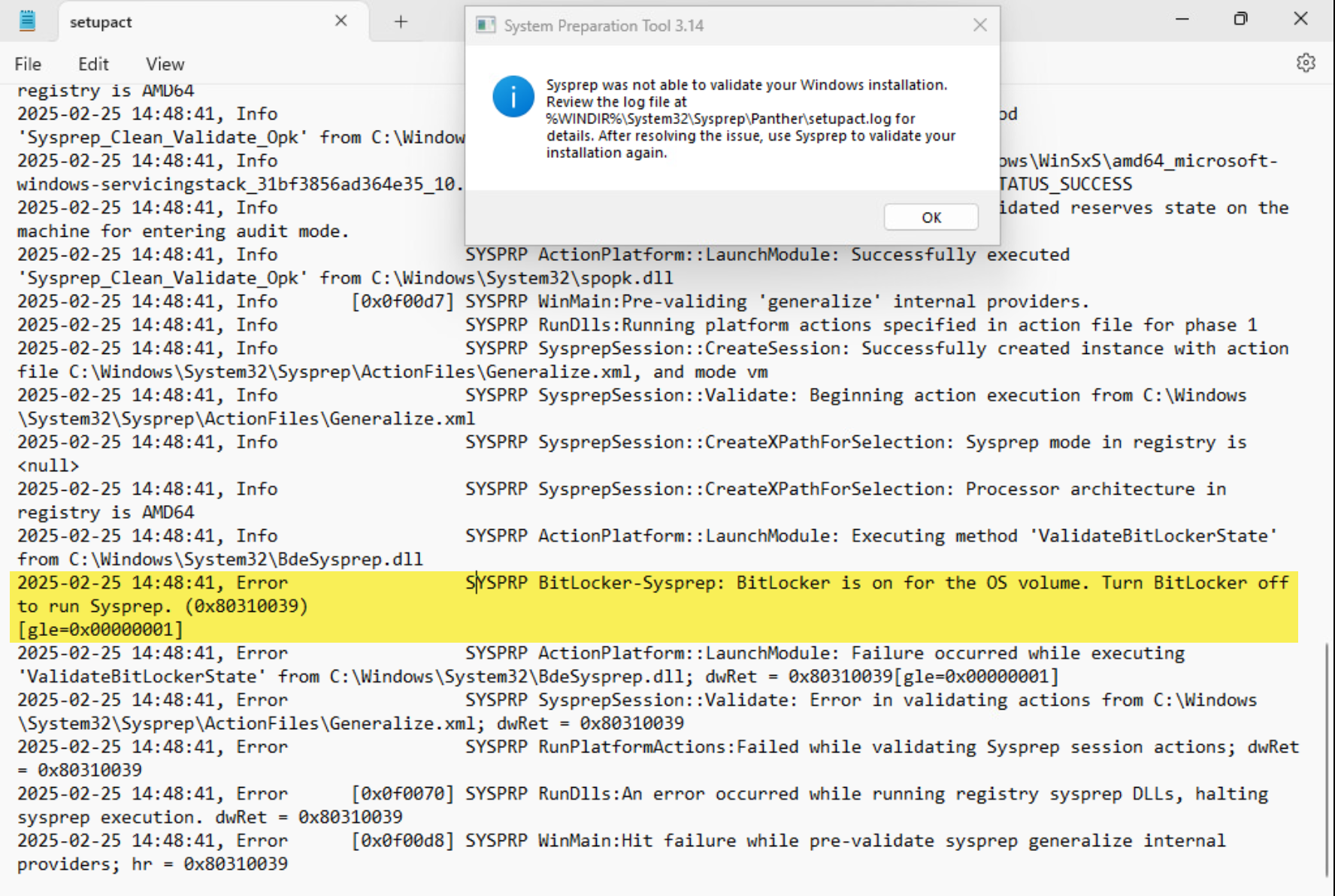
One thing I learned this week in testing 24H2 is that BitLocker is Enabled by default! So Sysprep will fail if you do not disable bitLocker. Like so:
And if you open up the log:
Click the OK button let the machine reboot.
Fix:
When the VM comes back up, lets open CMD prompt as Admin, and run the following command:
manage-bde -status
Should look something like this:
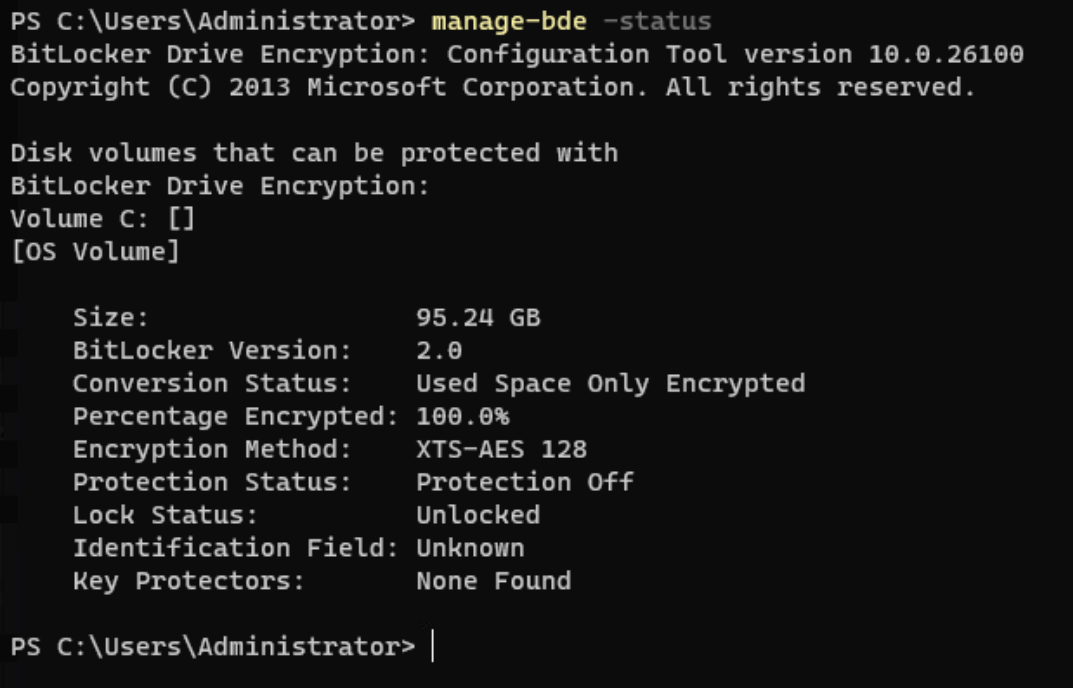
Now that we know for sure its encrypted, lets decrypt this thing! Run the following command:
manage-bde -off C:
should look like below:

It will take some time to complete, but you can repeat the manage-bde -status once its complete to show its fully decrypted like below:

Okay, now lets try Generalize again. Well, it will make it further this time but still hit an issue. Technically it will complete with errors, The errors are defined in a older version of 22H2, but essentially the store Service Install service will just need to be disabled. The error will show in the %WINDIR%\System32\Sysprep\Panther\setupact.log file will show something like below:

Just pull open services and disable it and will fix the issue before it happens. Once all complete you should be able to run Generalize with no issues.
Conclusion:
In working through this, it appears that there are some inherent issues with 24H2 that are yet to be resolved like for example the Windows App Removal issues with OSOT tool, Windows Backup being intergraded and no way to remove it or hide it as its integrated in so many contexts menu’s.
Work to be done:
As looking through the OS and looking at optimizations there are lots of little things that need to be trimmed from it, for example with just base OS after running optimization tool there are a few Scheduled tasks that are still enabled that need to get removed or disabled

For example Edge Update, OneDrive Update, OneDrive Startup task.
Im sure there is much more that needs to be done here, but im done for a looking right now, as will just ensure people are using 23H2 till these things are resolved.
For reference, if you want to look at the Omnissa Community page post i create on this please click the link below:
Windows 24H2 and Latest 2412 OSOT tool issues with Store Apps – General Horizon – Omnissa Community


 childebrandt42