
The Problem: Why Your VMware Updates Just Broke
If you’re managing a VMware environment and suddenly your updates stopped working—you’re not alone. As of mid-2025, Broadcom has retired public-facing VMware update repositories. That means tools like vCenter, vSphere Lifecycle Manager (vLCM), and SDDC Manager can no longer fetch updates from the old URLs like depot.vmware.com. As a consultant we are starting to see this more and more.
Instead, Broadcom has introduced a token-based authentication system and customer-specific download URLs hosted at dl.broadcom.com. This change affects all major VMware components, including:
- vCenter Server 7.x & 8.x
- vSphere ESXi 7.x & 8.x
- SDDC Manager 4.5.x & 5.x
- vLCM, VUM, and more
Step 1: Get Your Download Token
Before you can update anything, you need a Download Token from the Broadcom Support Portal.
Prerequisites:
- You must be assigned the Product Administrator role.
- Your account must be tied to a Site ID with valid entitlements for VMware Cloud Foundation (VCF) products.
How to Generate the Token:
- Log in to the Broadcom Support Portal.
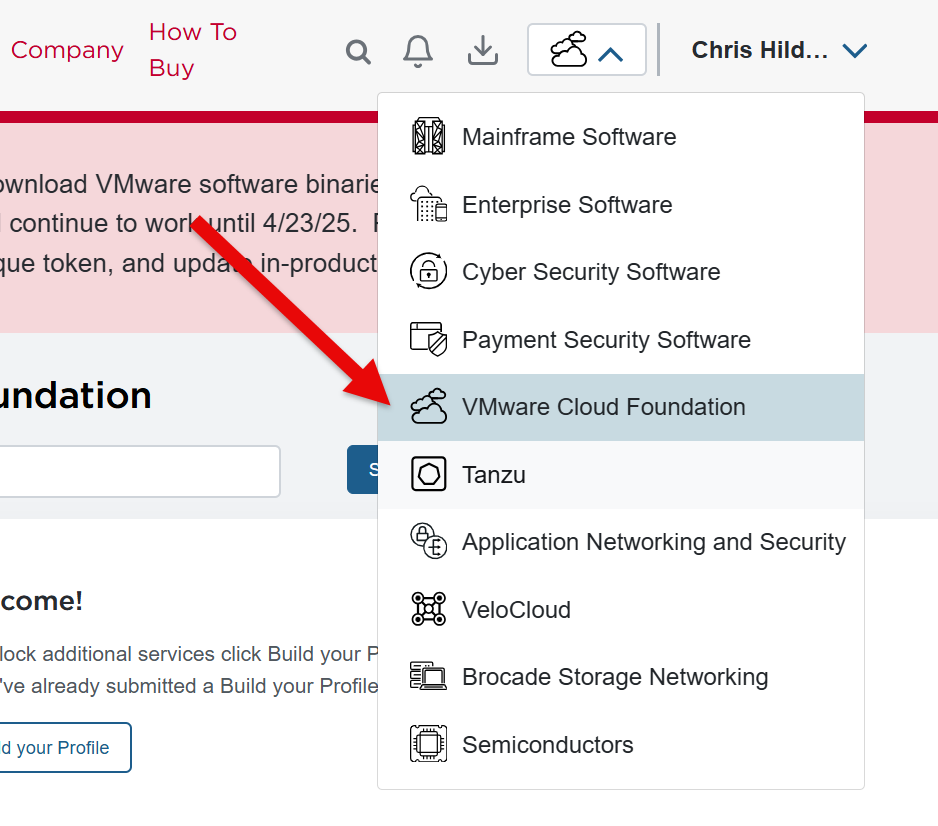
- Select VMware Cloud Foundation from the dropdown next to your username.
- Navigate to My Dashboard.
- In the Quick Links section, (If you have rights it will look like this):
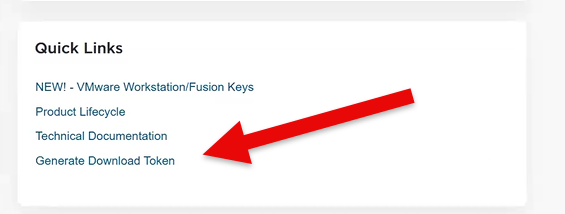
(If you do not have the “Portal Administrator” role it will look like):
click Generate Download Token Link. - Choose your Site ID and click Generate.

- Copy the code to clipboard and store for later use.
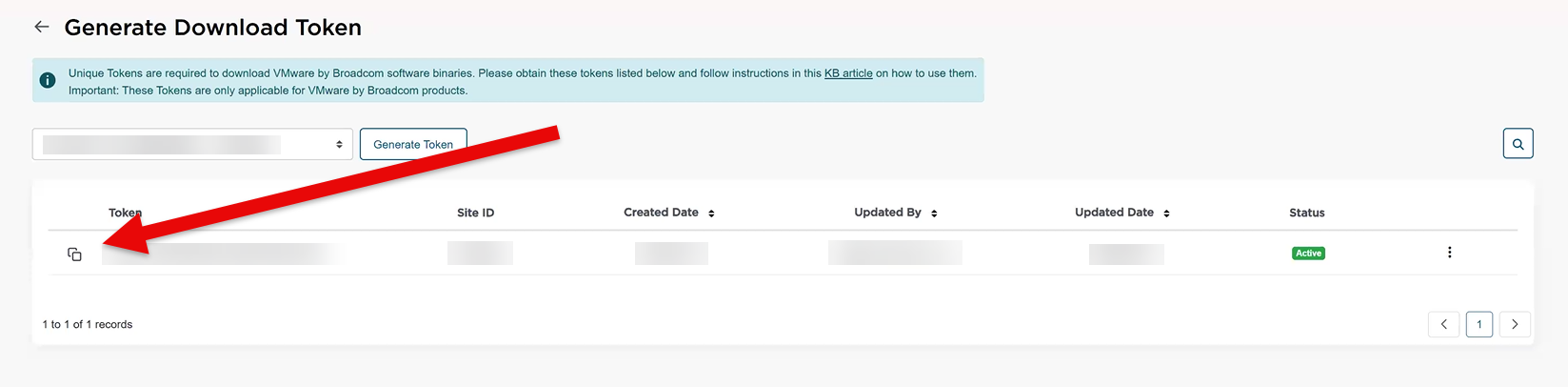
⚠️ Note: Tokens may take a few minutes to become active. If used too soon, you’ll get a “Not Entitled” error.
Step 2: Update Your Systems with the Script
Broadcom provides a PowerShell script to automate the update of your depot configurations: VMwareDepotChange.ps1. The script is found at the bottom of the page of here. Download and Extract the zip file.

Requirements:
- PowerShell 7.2+
- New Install:
winget install --id Microsoft.PowerShell --source winget
- Update:
winget upgrade --id Microsoft.PowerShell
- New Install:
- PowerCLI 13.3+
- New Install:
Install-Module -Name VMware.PowerCLI -Scope CurrentUser
- Update:
Update-Module -Name VMware.PowerCLI -Scope CurrentUser
- New Install:
- Network access to:
- Your vCenter or SDDC Manager
dl.broadcom.com
- Untrusted vCenter certificate:
Set-PowerCLIConfiguration -InvalidCertificateAction Ignore -Confirm:$false - Multi-vCenter Mode:
Set-PowerCLIConfiguration -DefaultVIServerMode Multiple - Execution Policy (If you have not bypassed Execution policy and want to bypass for this process only)
Set-ExecutionPolicy -ExecutionPolicy Bypass -Scope Process
Script Modes:
- Interactive Mode: Menu-driven, ideal for one-off updates.
- Non-Interactive Mode: Uses JSON input files for automation.
Interactive Mode:
Running the update script, you can open Powershell 7 window and change directory to extracted zip folder location.
Menu
From Powershell window run the following command to start the interactive menu../VMwareDepotChange.ps1
It should display a menu like: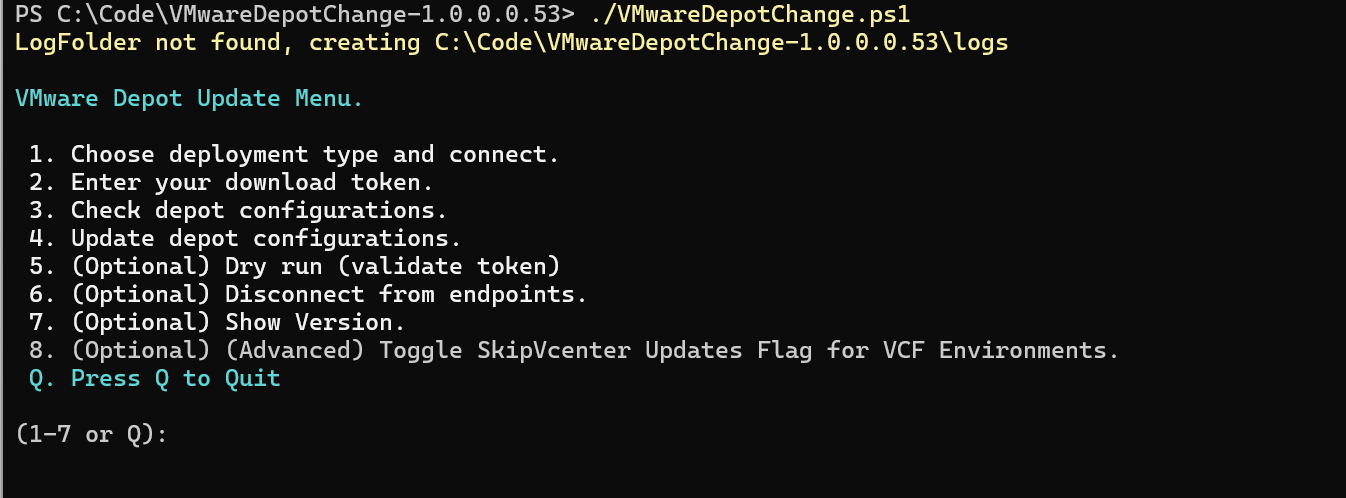
Connect
Next Select “1. Choose deployment type and connect.” by pressing “1”.
Following the promts and filling out the info in the questions in the connect portion, like below and press any key to continue:

Download Token
Now that we have connected lets enter our Download token. Choose option “2 . Enter your download token.” With a “2” and follow the steps to enter your download token like below and press any key following validation:

Dry Run
Next we are going to run the Dry Run to validate all the entered data is correct. “5. (Optional) Dry Run (validate token)” enter “5” to start this, and press any key once test is complete.

Update
Now that we have a successful test, lets do this for real. Lets select “4 Update depot configurations.” by entering “4” and pressing any key following script running.

Check Configuration
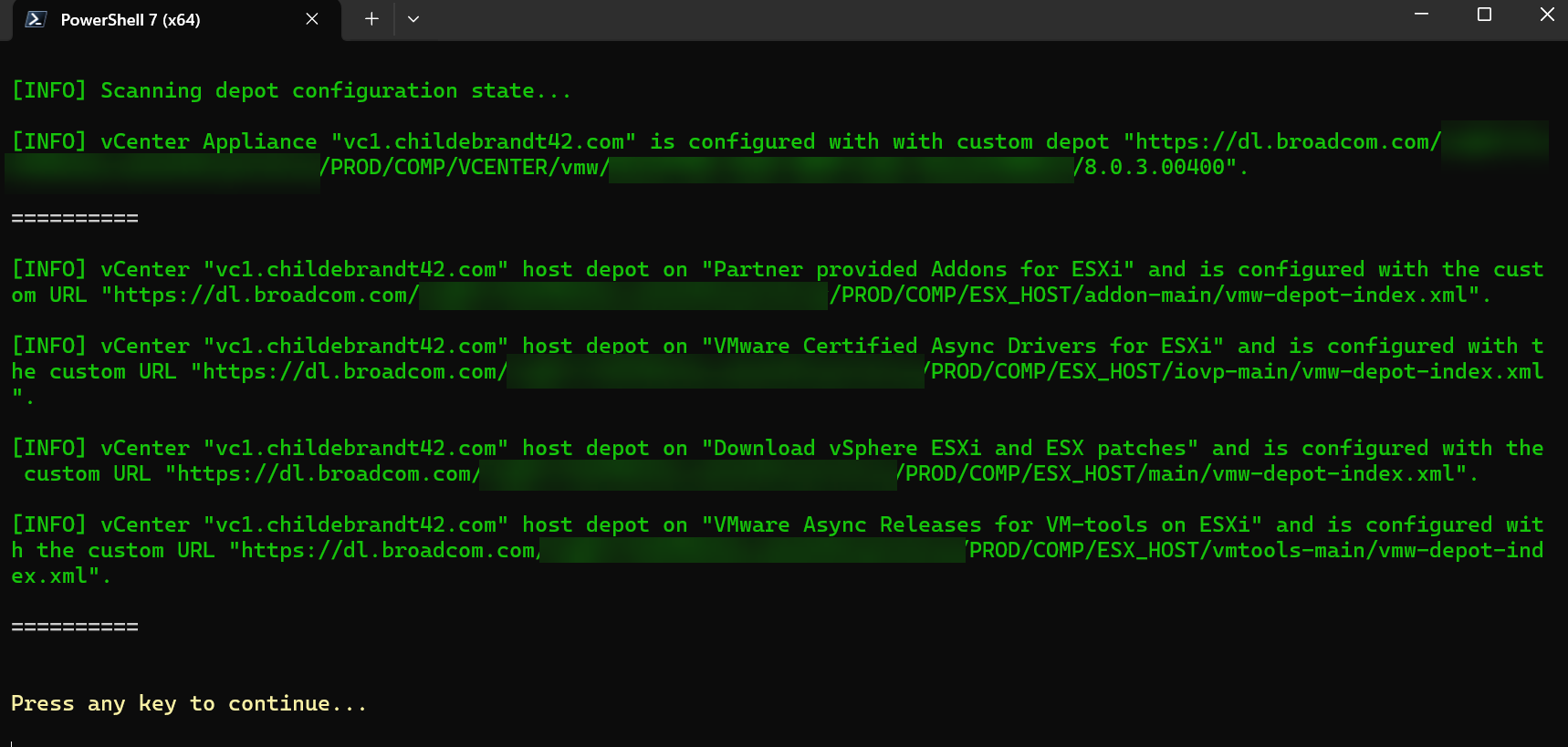
Now that you have updated your configuration we can run the “3. Check depot configurations” by entering “3” and validating all the URLs have been updated with Boadcom Token in them and pressing any key to proceed.
Disconnect
Now that you have validated your configuration we can run the “6. (Optional) Disconnect from endpoints.” by entering “6” And hit any key and close the powershell window.

Non-Interactive Mode:
Sample JSON for vCenter:
For our example we are going to be using the “sample-vcenters-nocredentials.json” file in the zip you downloaded from here above in the blog.
In the below Code, you can edit the vcenter names and it will promt you for credentials when it connects to each vCenter.
[
  {
    "VcenterFqdn" : "vcenter01.example.com"
  },
  {
    "VcenterFqdn" : "vcenter02.example.com"
  }
]
I updated the JSON to look like below removing the second vCenter and entered my vCenter FQDN.
[
  {
    "VcenterFqdn" : "vc1.childebrandt42.com"
  }
]
Run the Script
Before running the scrit for real, use the -DryRun function in the commandlet to test the token and info.
Connecting to vCenter
Lets connect to vCenter by running./VMwareDepotChange.ps1 -Connect -Endpoint vCenter -JsonInput childebrandt42.json
Following the onscreen prompts to enter your vCenter credentials.

Dry Run
To run a test run and validate your token is correct run the following commands.
./VMwareDepotChange.ps1 -DryRun -DownloadToken <32 character token> and should look like below:

Updating
Now that we have a valid dry run, lets do it for real this time. Run the following command../VMwareDepotChange.ps1 -Update -DownloadToken <32 character token>
When you run the command,
Check Configuration
Now we can check the configuration using the following command../VMwareDepotChange.ps1 -check
It will look something like below

Disconnect
Now we have validated configuration its time to disconnect with the following command../VMwareDepotChange.ps1 -Disconnect
It will look something like this:

Update via LCM
Now that you have updated the update URL’s and Added your download token, you can download and update via Life Cycle Manager.
Troubleshooting Tips
- 403 Not Entitled: Token was used too soon or lacks entitlement.
- 401 Unauthorized: Token expired.
- SSL Errors: Use
Set-PowerCLIConfiguration -InvalidCertificateAction Ignore -Confirm:$false.
Clean Up Legacy URLs
Once your systems are updated, remove old URLs from your firewall and configurations:
depot.vmware.comhostupdate.vmware.comvapp-updates.vmware.com
Things to Note
The Broadcom Token is tied to Broadcom user account, not the corporate customer account.
Final Thoughts
This shift to token-based, customer-specific download URLs is a major architectural change. While it adds complexity, it also enhances security and entitlement control. By following the steps above, you’ll ensure your VMware infrastructure stays patched, secure, and future-proof.
Refrence documents for this blog post are VCF authenticated downloads configuration update instructions and VCF authenticated downloads configuration update instructions. Share your experiences or questions in the Broadcom Community Forums to connect with other administrators.
If there is anything else you would like for me to cover drop a note in the comments or reach out on social media.


 childebrandt42