
If you are running Horizon Cloud Control Plane, or even Horizon Edge gateway for On-premises Connection Servers and you are running into issues with the Edge Gateway you can pull logs without calling support. But its not very fun, So lets jump into this.
Connect to the Edge Gateway console in vSphere or AOS.
Log into the Edge Gateway with the “root” account and the password you set at deployment.
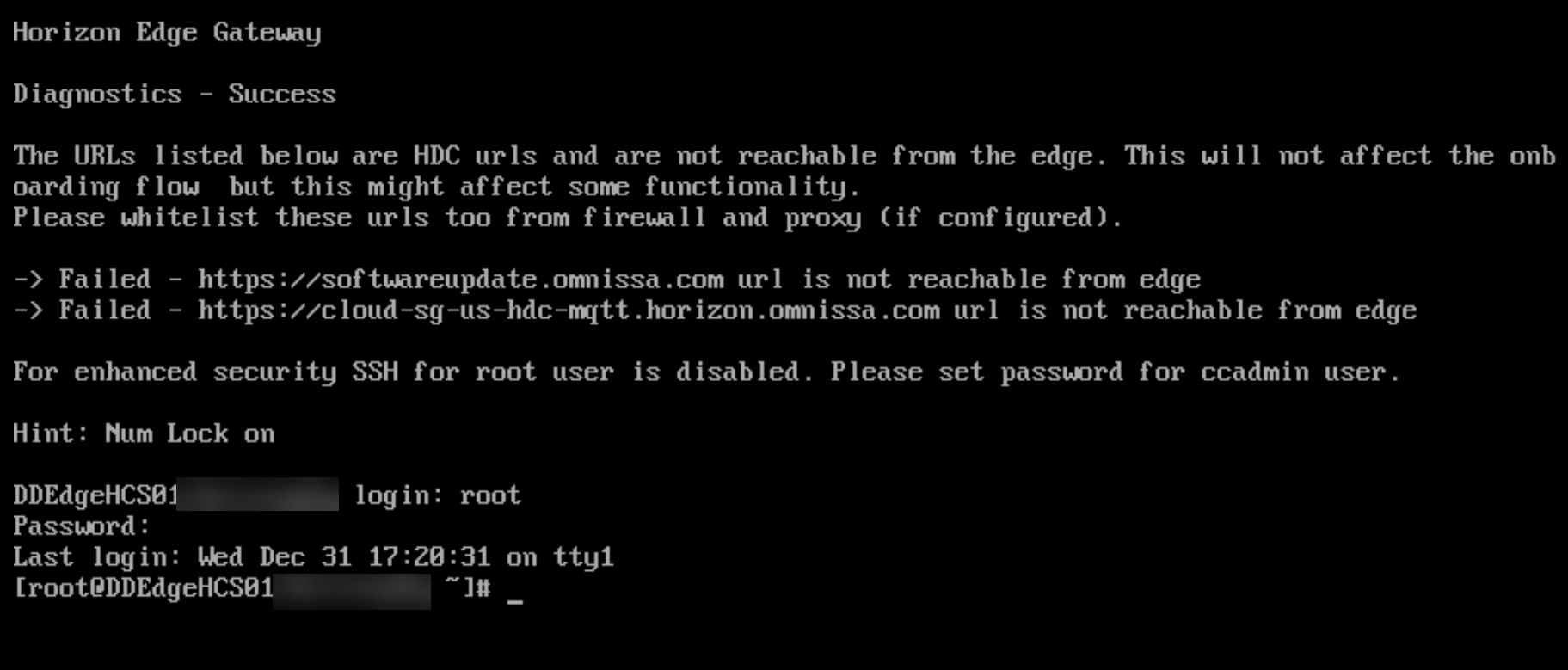
We can do this two ways we can enable SSH, or do it through the console. Both are same commands but find SSH is much easier.
Setting Up SSH:
Enter the following Command:
/opt/horizon/bin/configure-adapter.py --sshEnable
We now need to set the password for ccadmin, you will need to run the following command.
passwd ccadminEnter your password and should look like below:

Now we can connect to the Edge via SSH.
Open your SSH program of choice, today we are going to be using Putty!
Open putty and put in for your host name in the format below
ccadmin@ipaddress of the Edge

Example
ccadmin@10.10.10.101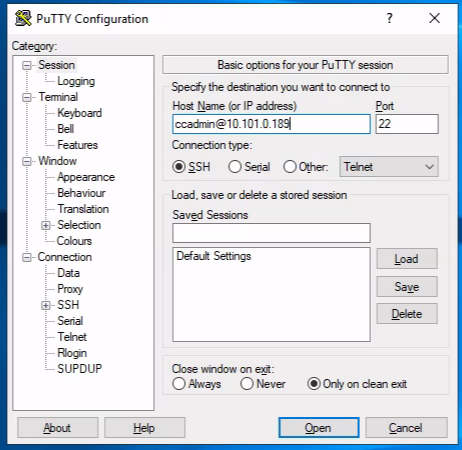
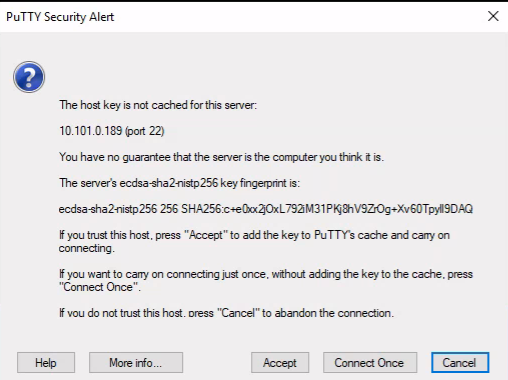
And click Open, This will open a Certificate Warning assuming you have never done this before, Click Agree.
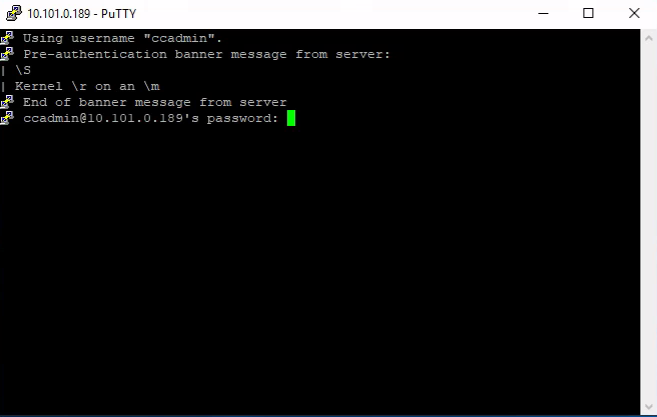
Now you should have your Putty SSH session open. So lets go into this.
First command we are going to run is to list all the Running Namespaces
sudo kubectl get namespaces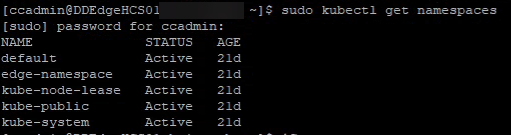
From here we are going to show all the Pods.
sudo kubectl get pods -n edge-namespace
In the list it spits out, we need to find the one listed as “infra-vsphere-module-deployment” and we are going to copy that name as we are going to use it in the next command.
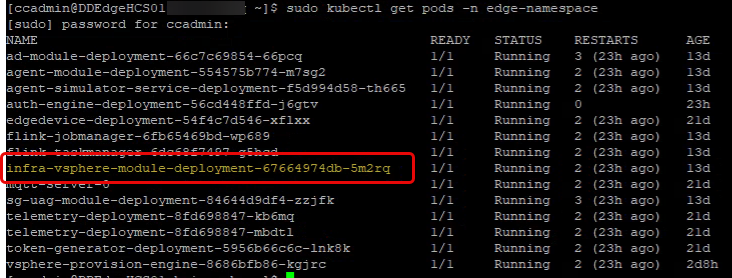
Next command will show all the running logs.
sudo kubectl logs infra-vsphere-module-deployment-(Your Numbers) -n edge-namespace

Example
sudo kubectl logs infra-vsphere-module-deployment-67664974db-5m2rq -n edge-namespace
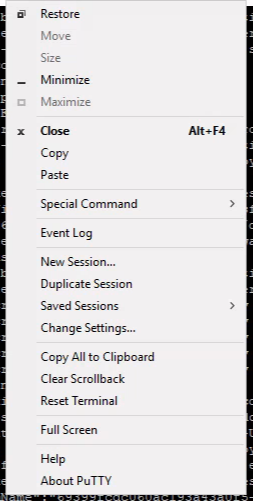
This will dump all your logs. Odds are you have a ton, so you might want to save them to a file. The easiest way is to Right click on your putting window, and choose “Change Settings”.
Under Session, choose logging, and Change it to “All session output” and choose your file path and name, like so, and Click apply.
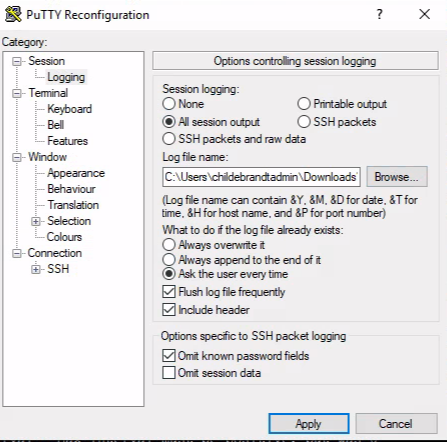
Now run the same command again. And you now have a valid log file.
You can search for your errors now.
I suggest you run the command to disable SSH via the following command:
sudo /opt/horizon/bin/configure-adapter.py --sshEnable

 childebrandt42