
Stop Handing Out Domain Join Superpowers – Scoped Service Accounts.
One of the most frequently “overlooked” (read: deliberately ignored because it’s easier) best practices in Active Directory management is actually using Role-Based Access Control (RBAC) when granting service accounts the ability to perform Domain Join functionality.
You know the drill: why bother with precision when you can just slap domain-wide join rights on an account and call it a day? After all, giving a service account unrestricted Domain Join functionality across the entire domain is the AD equivalent of handing out master keys to your house and wondering why things go missing. It’s quick, it’s simple… and it’s a security auditor’s nightmare.
The reality? Unlimited Domain Join functionality lets computer objects pop up anywhere—like weeds in an untended garden. A compromised service account could quietly add rogue machines, escalate privileges, or worse. And let’s not forget the classic default: every authenticated user can perform up to 10 Domain Joins thanks to the ms-DS-MachineAccountQuota attribute (which savvy admins set to 0 to shut that door).
In this post, we’ll take the mature route: setting up dedicated service accounts (or security groups) with least-privilege permissions to perform Domain Join functionality—but only in specific Organizational Units (OUs) you designate.
We’ll cover:
- Why domain-wide Domain Join rights are a terrible idea (with a side of sarcasm for the “it works, ship it” crowd).
- Step-by-step delegation using the Delegation of Control Wizard (and advanced tweaks for those validated writes).
- The exact permissions needed for clean Domain Joins (create computer objects, reset passwords, validated writes to DNS hostname and service principal name, etc.).
- Scoping it all to your target OUs so nothing runs wild.
Because in 2026, “just make it Domain Admin” shouldn’t still be anyone’s go-to strategy. Let’s secure those Domain Joins properly—your future self (and your security team) will thank you.
Lets Jump into this!
To delegate the necessary permissions to your service accounts (or the security group containing them), follow these steps in a clean, least-privilege manner:
- Open Active Directory Users and Computers (ADUC) console.
- Navigate to the top-level Organizational Unit (OU) where you want to restrict and allow computer object creation (e.g., your dedicated Computers or VDI OU).
- Right-click the OU and select Delegate Control… from the context menu.
This launches the Delegation of Control Wizard, which we’ll use to grant precisely the permissions required for secure domain joins—nothing more, nothing less. Let’s keep those service accounts on a short leash, shall we?

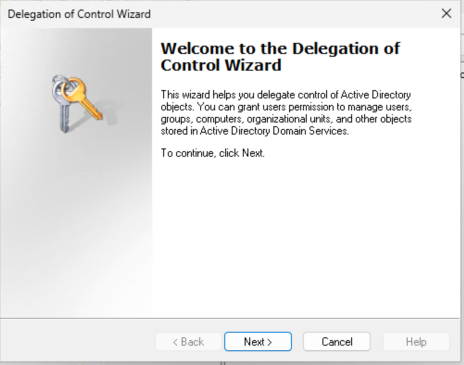
On the new Delegation of Control Wizard window click on that Next button!
On the next windows for Selecting Users and Groups, click the Add button.
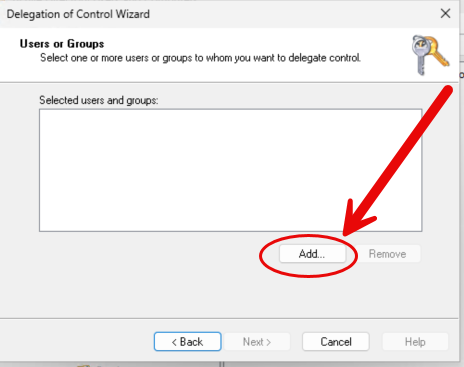
In the Delegation of Control Wizard, when you reach the Users or Groups page:
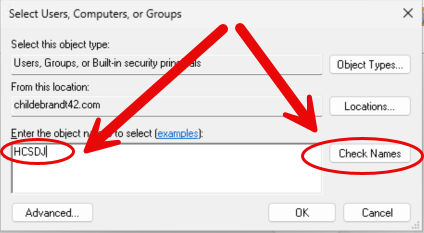
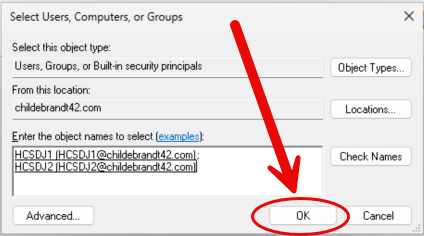
- Click Add to open the Select Users, Computers, or Groups dialog.
- In the search field, type the beginning of your Domain Join service account or group names (e.g., “HCSDJ” for my environment).
- Click Check Names.
The wizard should automatically resolve and underline the matching objects, expanding them to their full distinguished names—much like the example results shown below.
(Pro tip: Delegating to a security group instead of individual accounts is the far more scalable and sane approach. Your future self will appreciate not having to redo this every time you rotate a service account.)
Highlight the accounts you want to add and click OK button.
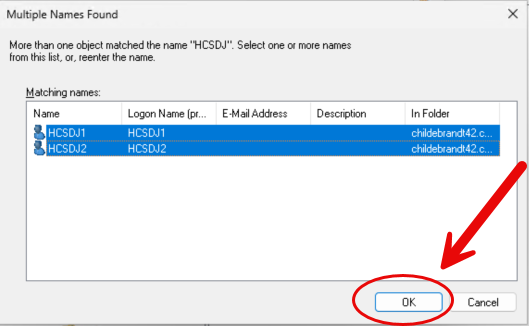
In the Select Users, Computers, and Groups wizard make sure you have all your AD Accounts or Groups selected and click that OK button.
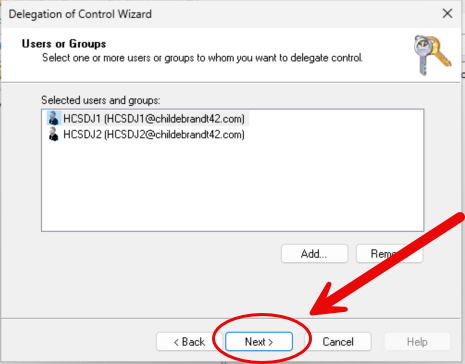
It will close the window, and bring you back to the Delegation of Control Wizard, if you would like to add any others to the list, Click the Add button again and repeat the process once complete, click that Next button.
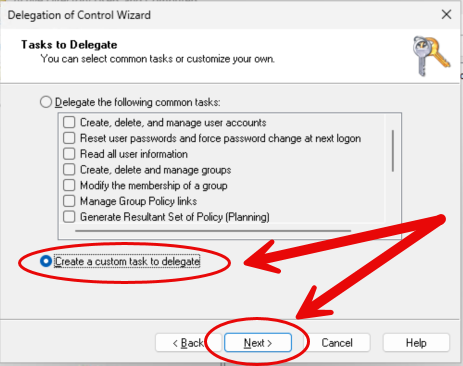
On the Tasks to Delegate window, Select “Create a Custom task to delegate” and click the Next button.
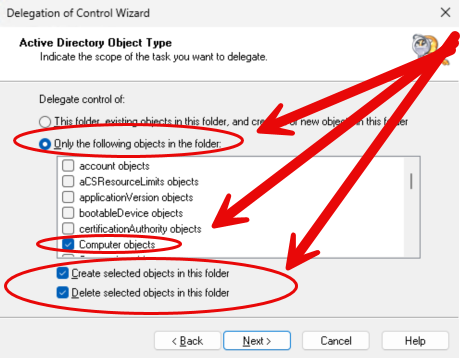
In the Delegation of Control Wizard, on the Object Type page:
- Select the radio button for Only the following objects in the folder.
- In the list below, check the box next to Computer objects.
- At the bottom of the page, under Permissions, check the boxes for:
- Create selected objects in this folder
- Delete selected objects in this folder
- Click the Next button.
Your selections should now match the screenshot shown below—giving the service account just enough power to create (and clean up) computer objects during domain joins, without handing them the keys to the entire kingdom.
(Yes, we absolutely need the delete permission too—otherwise, failed joins or decommissioned machines will leave orphaned computer objects cluttering your OU forever. Nobody wants that hot mess.)
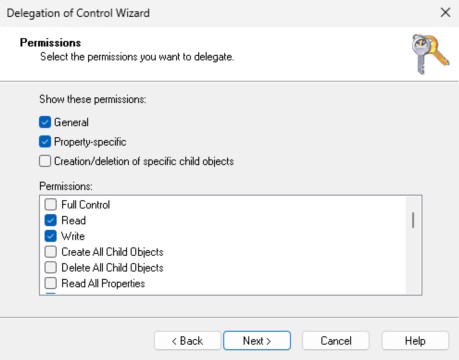
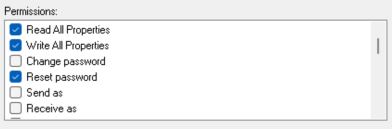
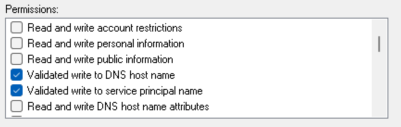
Select the following permissions from the list:
- Read
- Write
- Read All Properties
- Write All Properties (this should auto-select when you choose Write)
- Reset Password
- Validated Write to DNS Host Name
- Validated Write to service principal name
Your screen should now look similar to the example below.
Critical reminder: Do not check Full Control. Ever. Full Control is the lazy admin’s panic button—it hands over way more power than any service account needs, defeats the entire purpose of delegation, and will make your security team (and any auditor) question your life choices. We’re here for precision, not carpet bombing.
Once you’ve checked only the permissions above, click Next to continue.
(These validated writes are what allow the service account to properly set the DNS hostname and SPN during the join process—without them, you’ll hit frustrating errors down the line. But Full Control? That’s just overkill wrapped in a bad decision.)
From here, you’re in the home stretch:
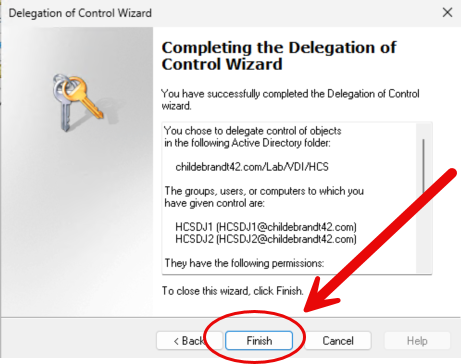
Click Next, then Finish.
Review the summary page in the Delegation of Control Wizard (it’ll list the account/group, the OU, and the exact permissions you’ve so carefully selected).
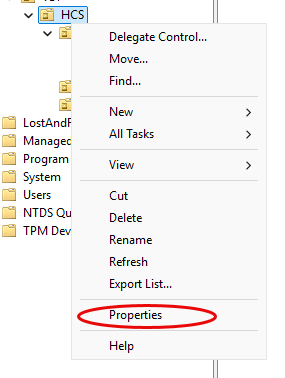
If you would like to validate permissions you have just created you can do the following. From ADUC or Active Directory Users and Computers browse to the OU you just assigned permissions to and right click on it and choose Properties.
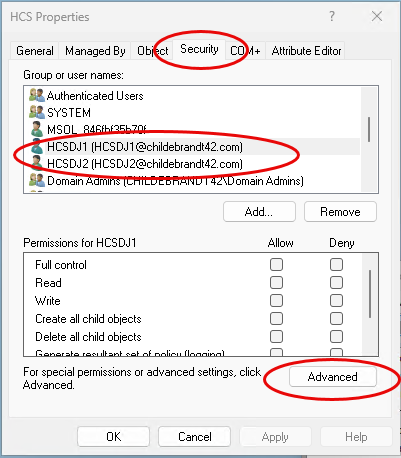
From within the Properties window, click on Security. You will now see the Accounts or Groups you assigned permissions to like below in my lab. If you want to see more details click on the Advanced button.
It will open an Advanced Security Settings for the OU, and you can see the permissions assigned. If you hightlight the “Special” on, and click on Edit you can see more details
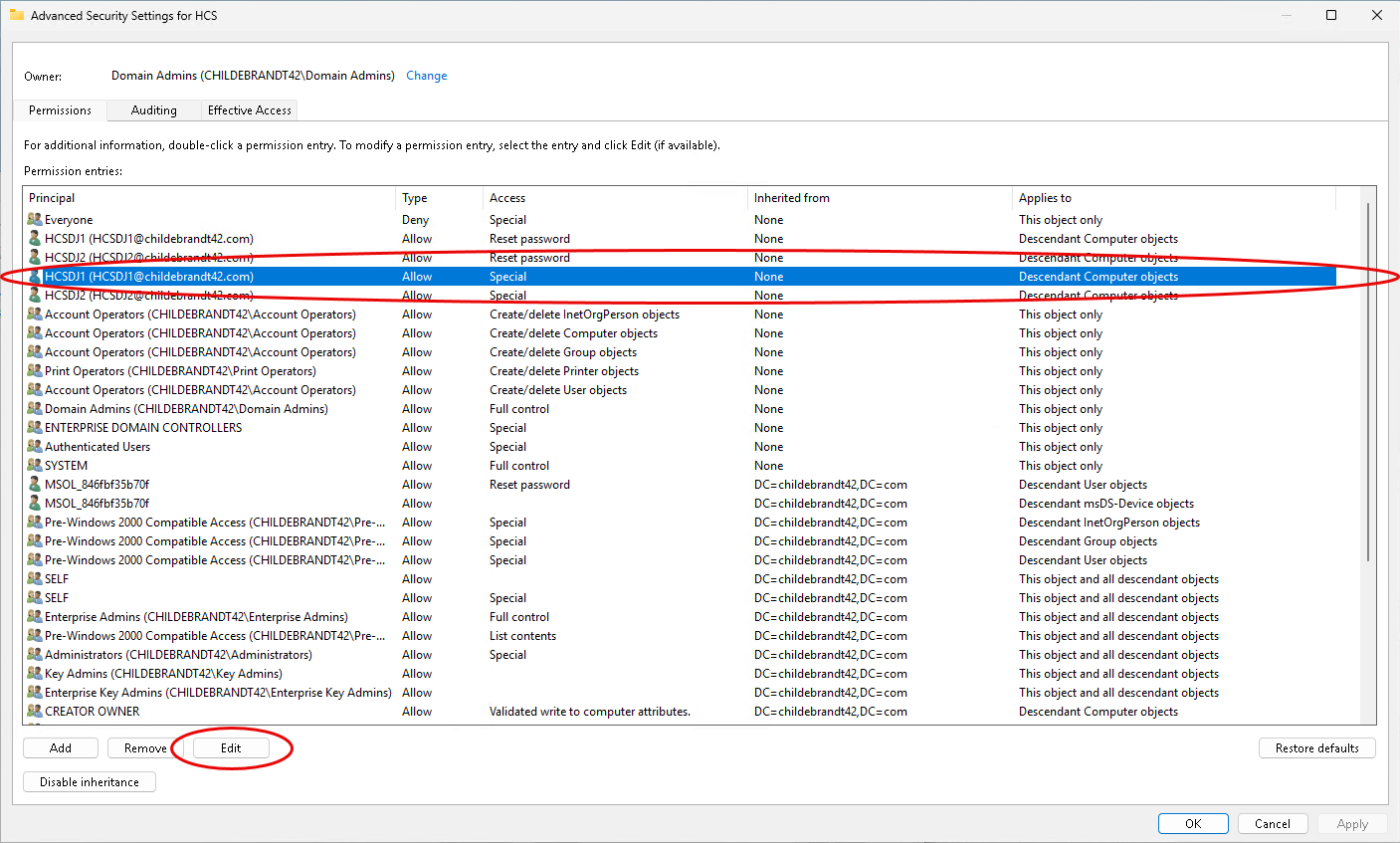
You can expand or scroll down in the window to see all permissions

That’s it—the wizard will apply the delegation, and your service accounts (or group) now have precisely scoped rights to perform Domain Join functionality only within the OU you targeted.
No more rogue computer objects sprouting up in random places. No more over-privileged service accounts that make security folks twitch. Just clean, least-privilege domain joins that work reliably without handing out the digital equivalent of a skeleton key.
(If you’re feeling extra responsible, go ahead and test it: try joining a machine to that OU with the service account credentials. It should succeed gracefully—and fail spectacularly if you point it anywhere else. Sweet validation, right?)
Congratulations—you’ve officially leveled up from “it works” admin to “it works securely” admin. Your Active Directory thanks you.


 childebrandt42